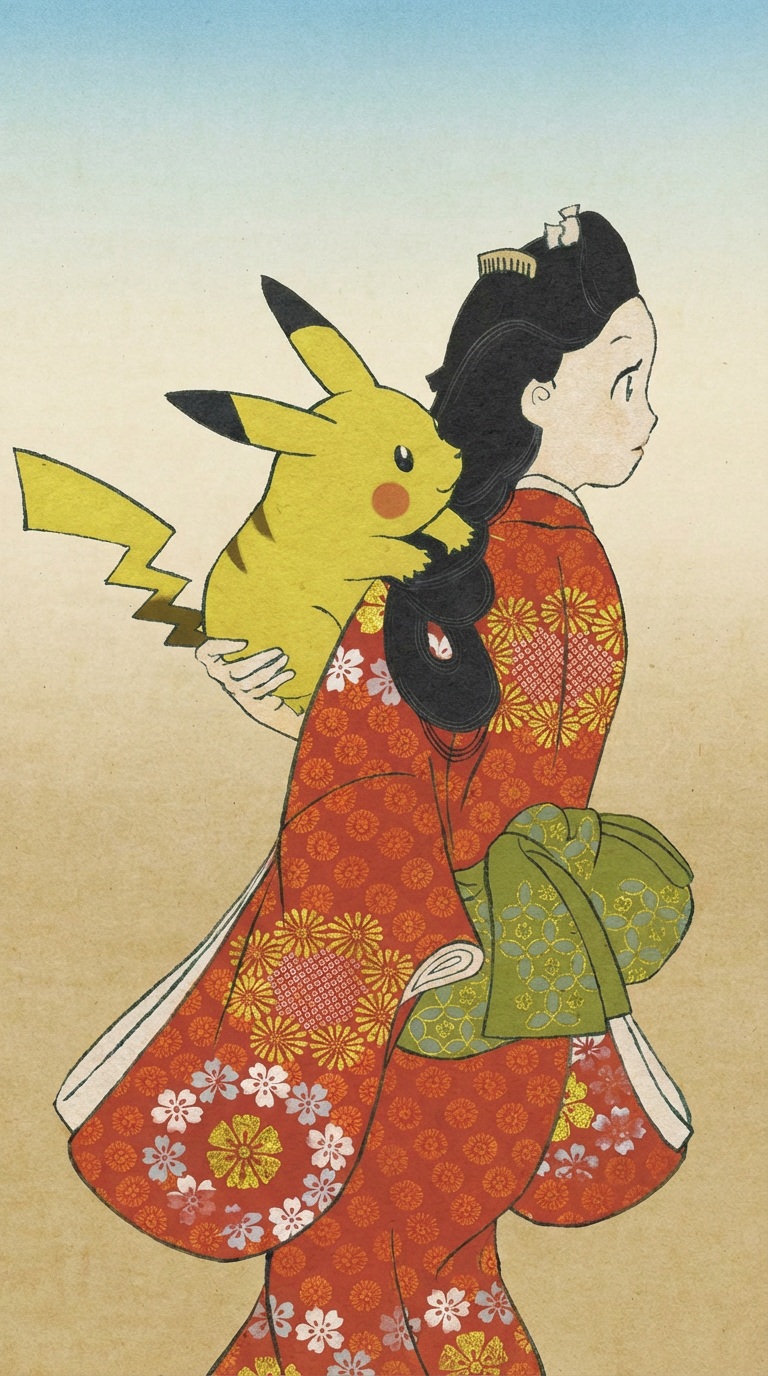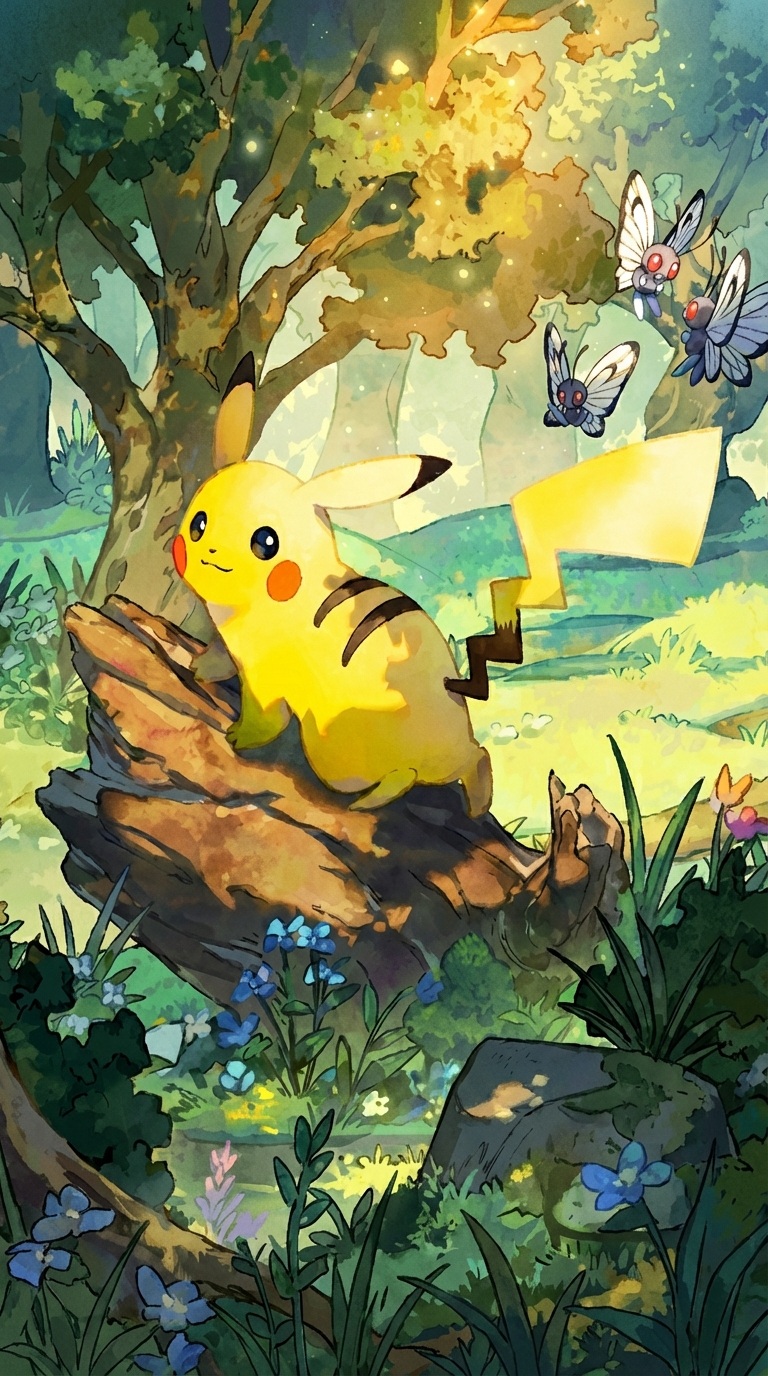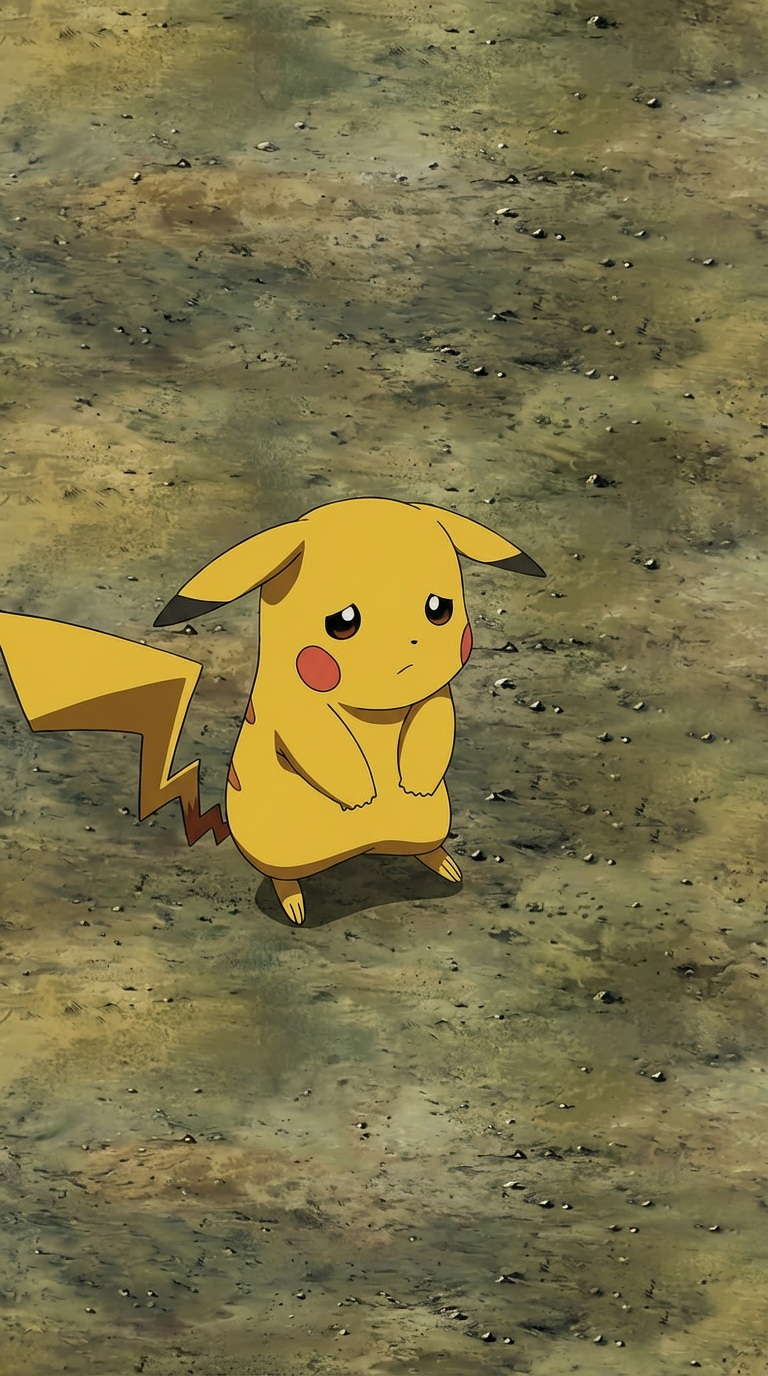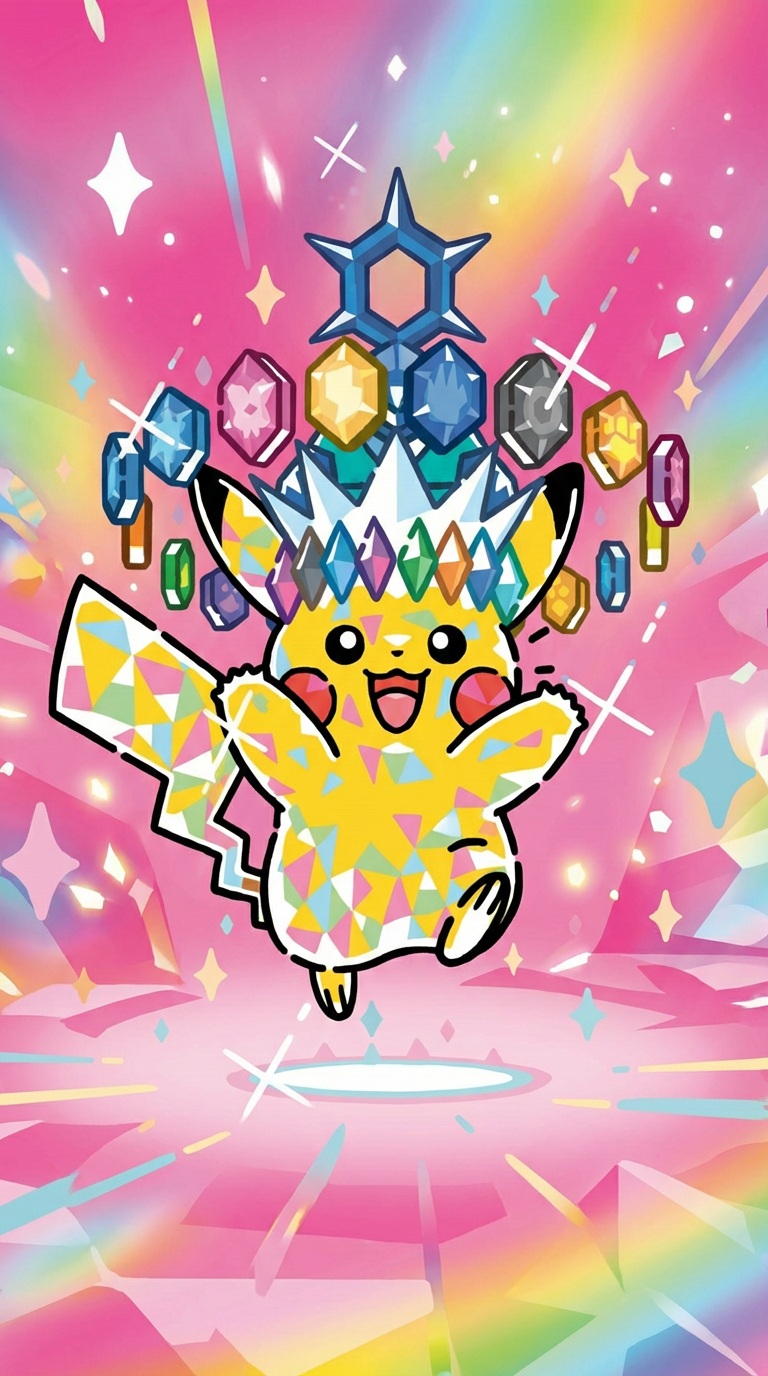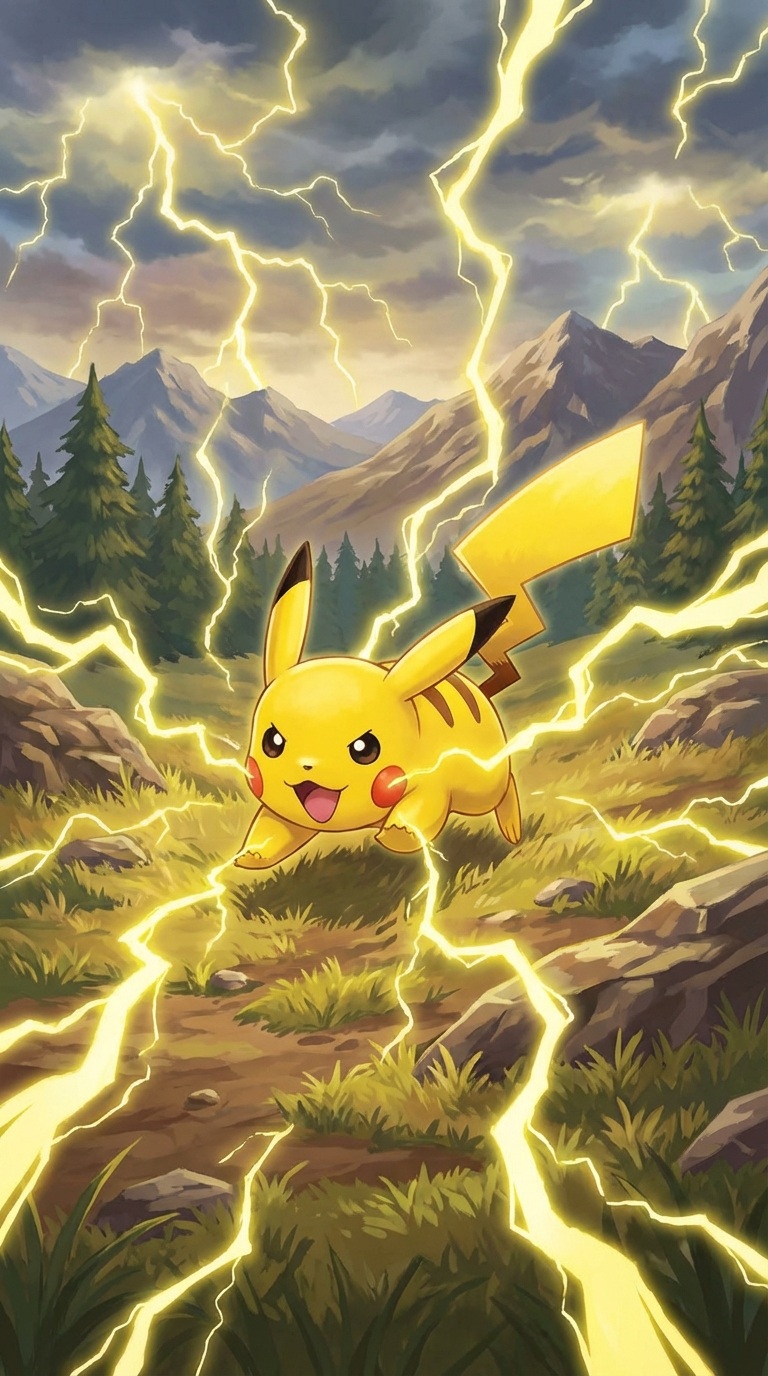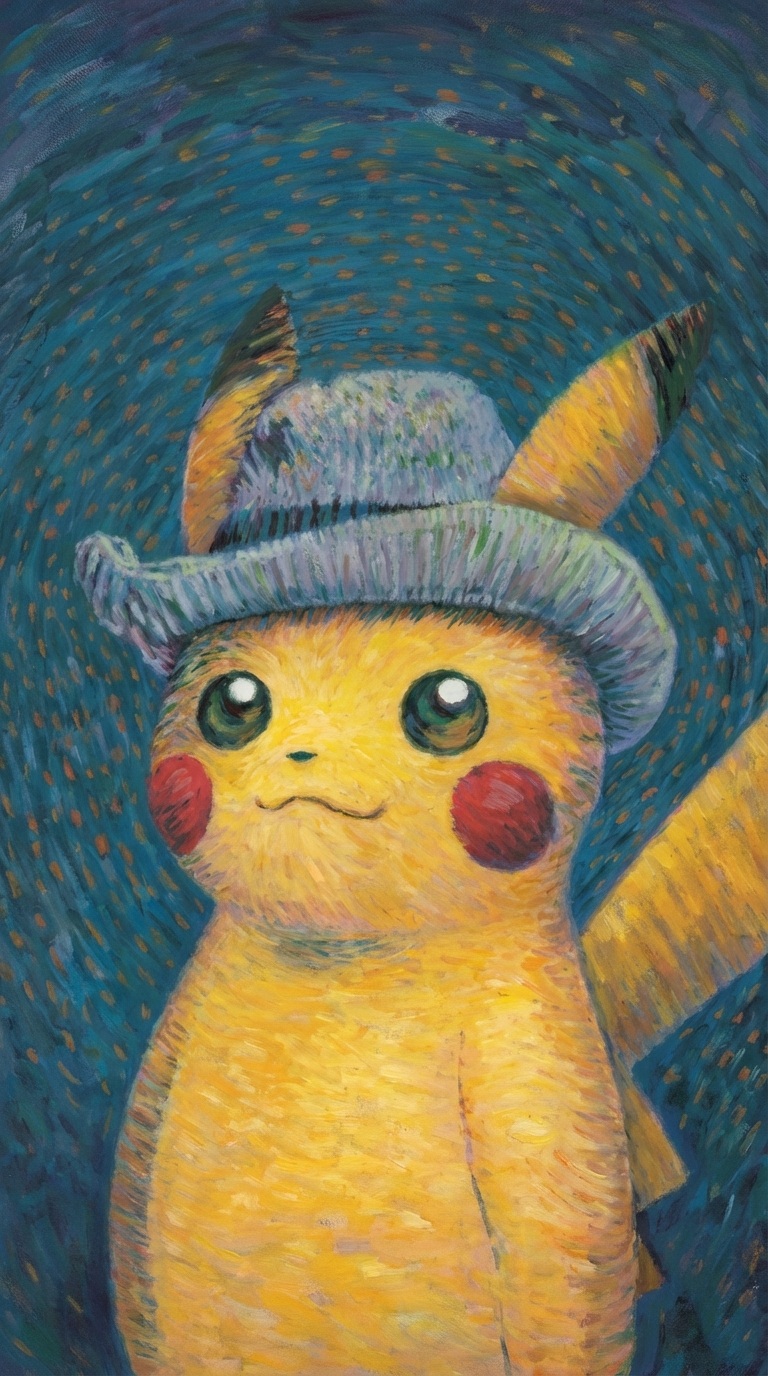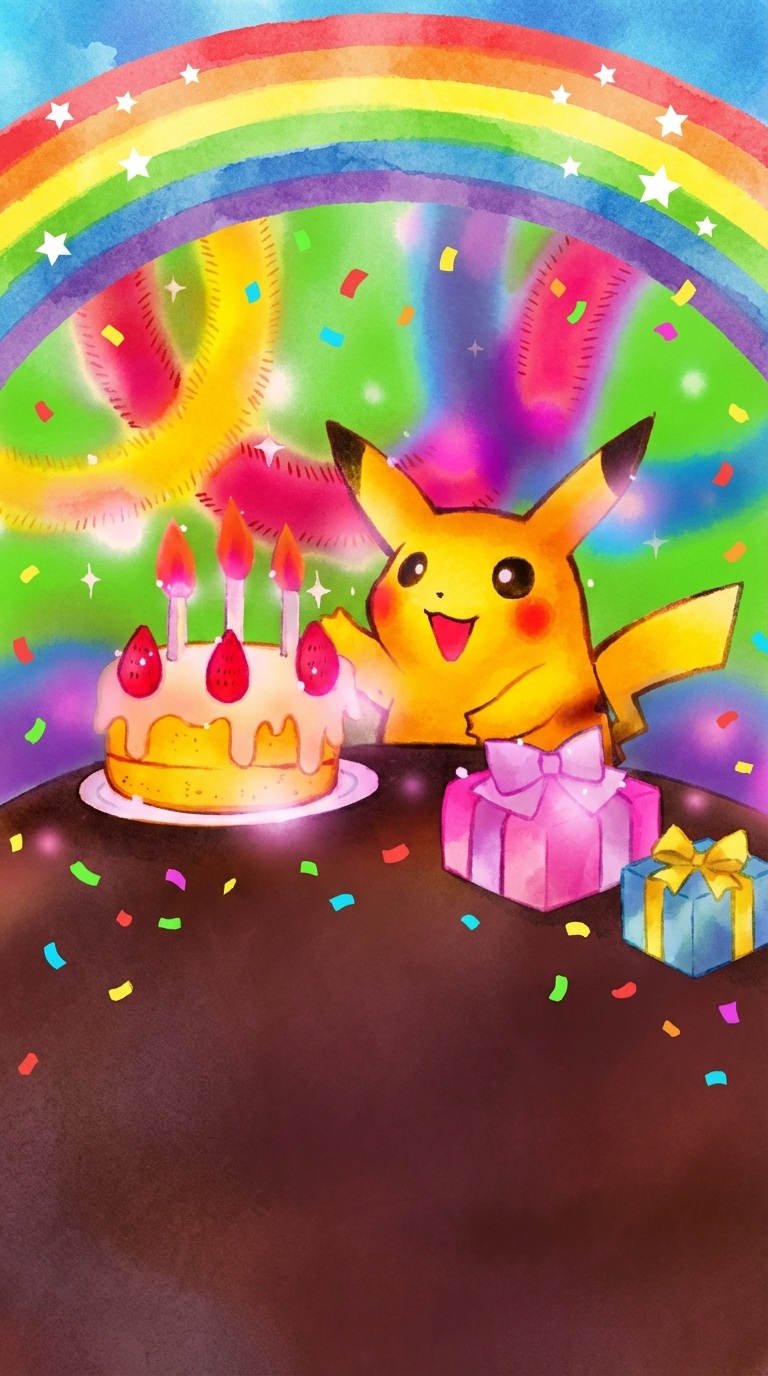
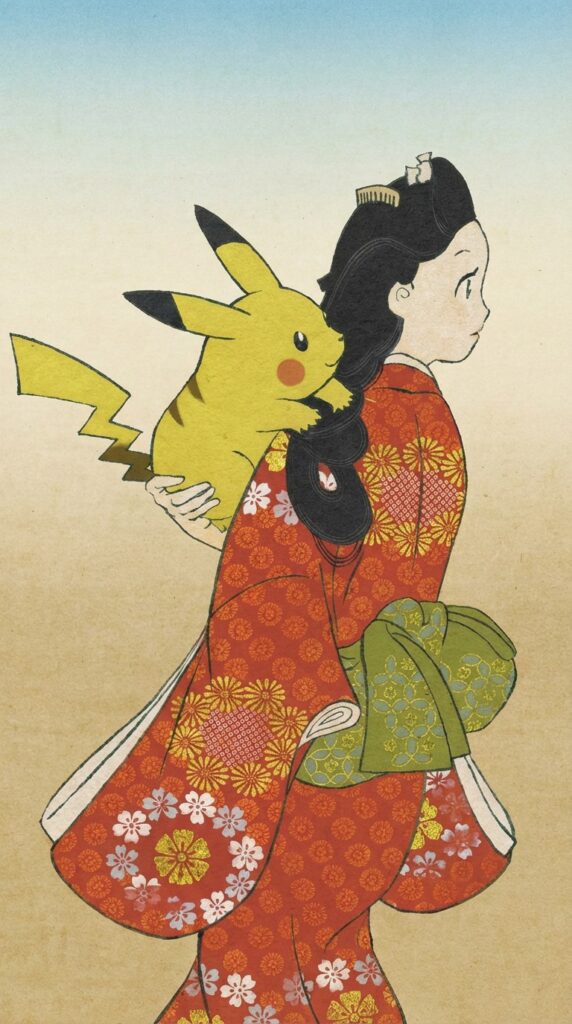
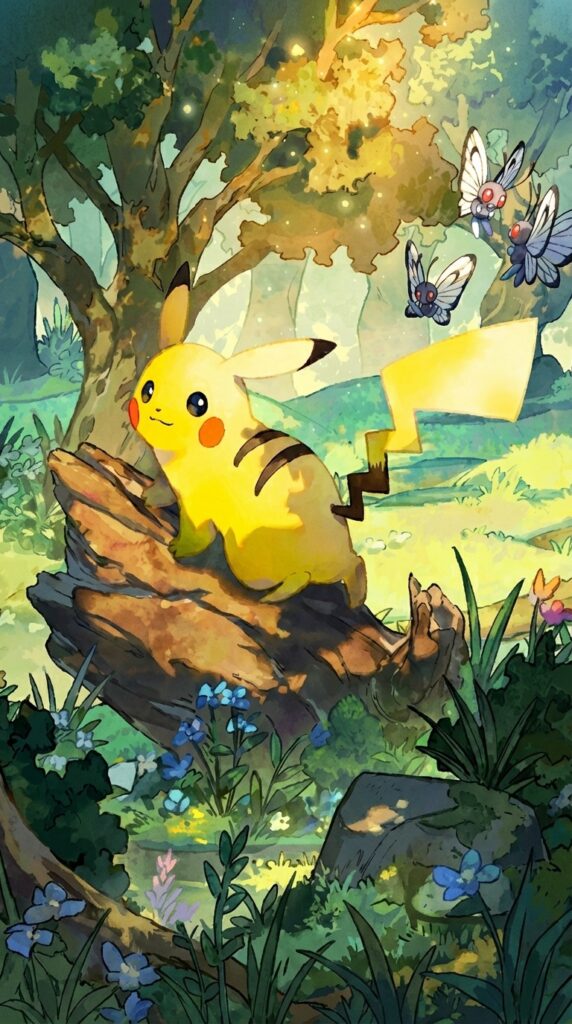
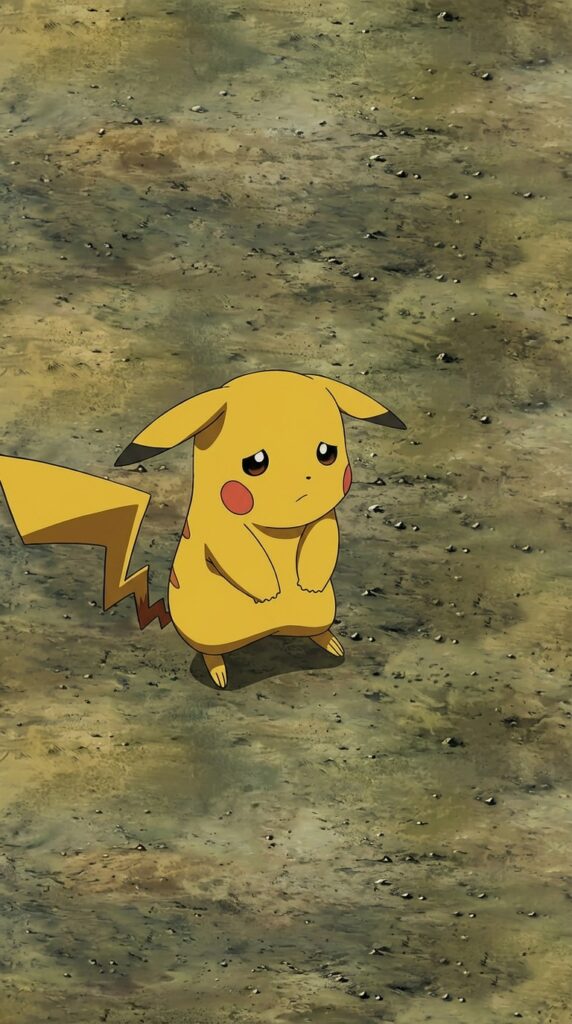
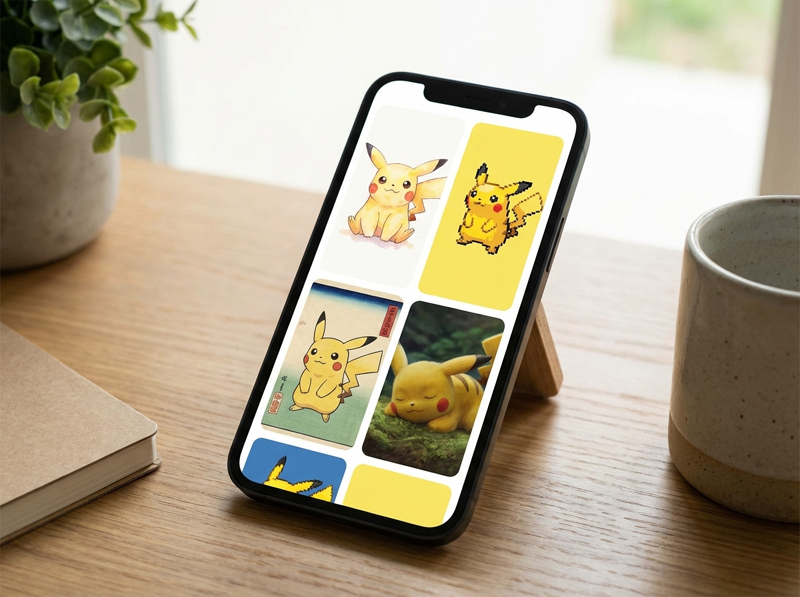
A selection of Pikachu mobile wallpapers is available to download free of charge. The vertical, high-resolution images suit modern smartphones, with no registration required.
































Using an image as a mobile wallpaper
A photograph saved on a phone can be used as wallpaper. The exact steps vary between Android and iPhone.
On Android
- The relevant application is Gallery or Photographs.
- The desired image is selected.
- Its menu is opened using ⋮ (three dots) or More.
- The required option is Set as wallpaper.
- The crop can be adjusted if necessary.
- Available locations include: Home screen, Lock screen or Both.
- Confirmation applies the selection.
Alternative through settings:
- The relevant menu is Settings.
- followed by Wallpaper (or Display > Wallpaper depending on the device).
- The image source is Gallery and the desired picture is selected.
- The crop is adjusted before confirmation.
On iPhone
- The relevant application is Photographs.
- The desired image is selected.
- The relevant icon is Share.
- The required option is Use as Wallpaper.
- The crop can be adjusted by zooming or moving the image.
- The next control is Add.
- Available options include: Set as Wallpaper Pair (Lock Screen and Home Screen) or Customise Home Screen.
Alternative through Settings:
- followed by Settings.
- The relevant menu is Wallpaper.
- The next control is Add New Wallpaper.
- A photograph is selected, adjusted and confirmed.
Practical considerations
- A suitable image uses a vertical format (portrait).
- A preferable source has high resolution to avoid visible blur.
- The clock, widgets and icons should not obscure important parts of the image.
- A centred crop may improve the result where the original composition does not fit.